
Group Appointments
Normally, an appointment belongs to exactly one customer: as soon as someone books a time slot, it's no longer available to anyone else. With a group appointment, several customers can book the same time slot until the number of participants you've set is reached.
When group appointments make sense
- Viewings with multiple prospects: You show the apartment once instead of five times in a row.
- Information evenings and consultation appointments for groups: One appointment, many participants, each person books individually.
- Courses, trainings, tours: Fixed spots per appointment; the booking closes automatically once the appointment is full.
Creating a group appointment
You create group appointments in the same dialogs as individual appointments – when creating an availability or a bookable appointment.
- In the calendar, open the resource menu and select Offer available consultation hours (for a time window with multiple appointments) or Set bookable appointments (for fixed appointments).
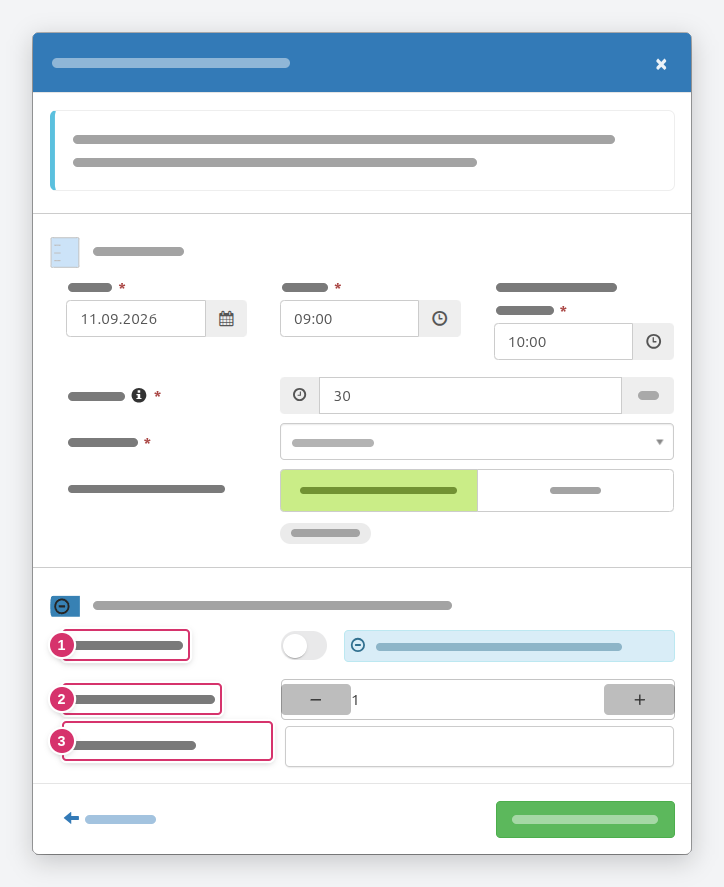
- At the bottom of the dialog, you'll find the Default settings for appointments in this availability section. Turn on Group appointments (1). While the toggle is off, "Exclusive appointments for individual customers" is shown next to it.
- Under Participants per appointment (2), set how many people may book the same time slot.
- If needed, enter a meeting point under Provided location (3). If the field is left empty, the resource's address applies; if that is missing too, the dialog flags it with "Missing!".
- Save. The appointments appear in the calendar as usual; each time slot now accepts as many bookings as you've set.
Choose the number of participants carefully
What your customers see
To your customers, a group appointment looks like any other appointment: they choose a time slot, enter their details, and receive a confirmation. They won't know that other people have booked the same time slot – participants remain invisible to each other. Once the number of participants is reached, the time slot is no longer offered.
In your calendar, on the other hand, you see all bookings for an appointment and can edit or cancel each booking individually.
Related topics
- Creating Bookable Appointments
- Availabilities
- Meeting Point for Appointments
- New developments with a reference property per apartment type – group appointments for collective viewings in new developments